


Imagine cruising down the highway, your favorite tunes blasting, when suddenly your iPhone decides it’s the star of the show. CarPlay takes over, and you’re left wondering how to regain control of your own playlist. It can feel like your phone’s throwing a party and you weren’t even invited!
Understanding CarPlay
CarPlay enhances the driving experience by integrating an iPhone with a vehicle’s infotainment system. This technology allows drivers to use their phone’s features seamlessly.
What Is CarPlay?
CarPlay connects an iPhone to a car, enabling access to apps and features via the vehicle’s display. This connection provides convenient control over navigation, calls, and messages. Users can interact through voice commands or touchscreen controls, making it easier to stay focused on the road.
Benefits of Using CarPlay
CarPlay offers several advantages for drivers. Enhanced safety ranks among the top benefits, as it reduces distractions by allowing hands-free operation. Compatibility with popular apps increases convenience, providing access to music, maps, and messaging. Customization options allow users to tailor their experience, prioritizing preferred apps on the display. Vehicle compatibility varies, but most modern cars support this technology, making it widely accessible.
Step-by-Step Guide on How to Disconnect CarPlay on iPhone
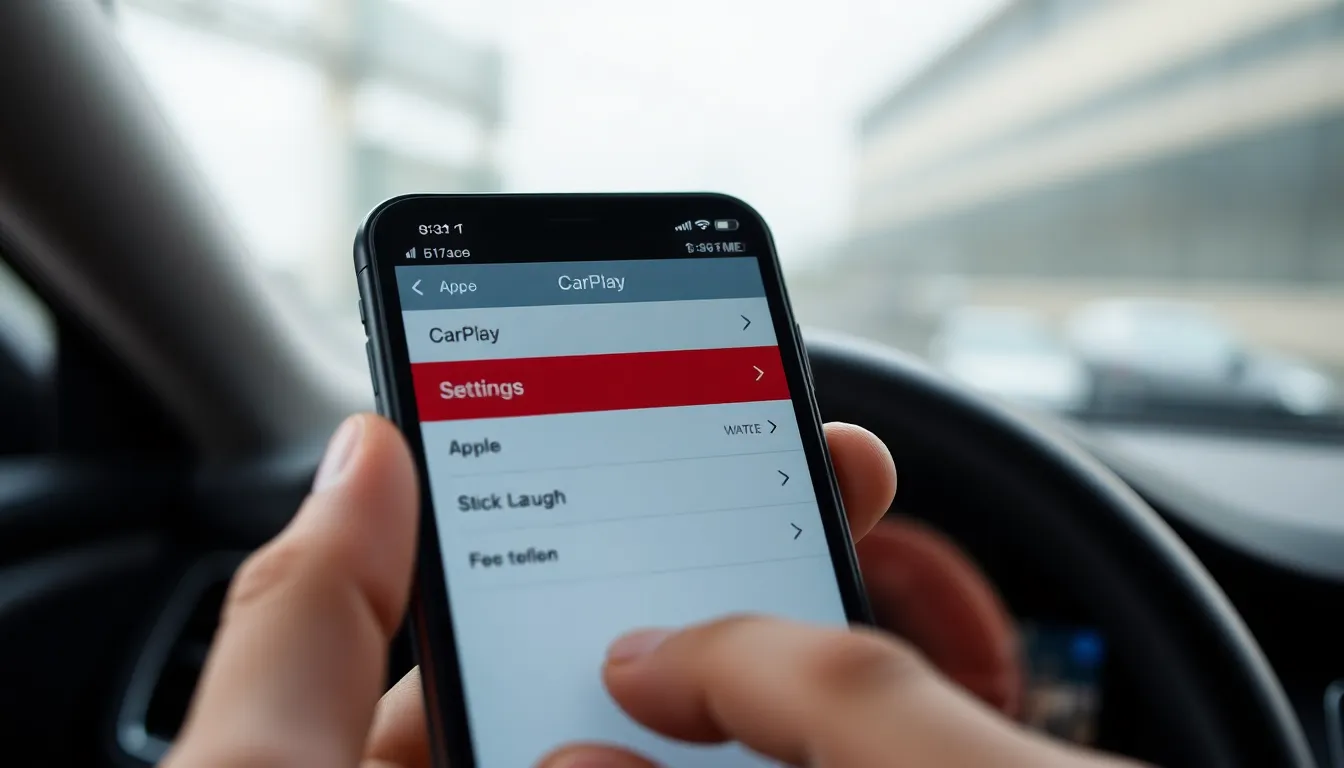
Disconnecting CarPlay from an iPhone can restore music control to the user and stop unwanted interruptions. Several methods exist, making the process straightforward.
Method 1: Disable CarPlay in Settings
To disable CarPlay, open the Settings app. Next, select “General,” then tap on “CarPlay.” The connected car will appear in a list. Choose the vehicle’s name and select “Forget This Car.” This action disconnects CarPlay entirely, giving the user complete control again.
Method 2: Disconnecting via Bluetooth
Bluetooth disconnection offers another way to stop CarPlay. Access the Settings app and tap on “Bluetooth.” Locate the car’s name in the list of devices. Tapping the “i” icon next to the car’s name brings up options. Selecting “Disconnect” interrupts the Bluetooth connection and disables CarPlay functionality.
Method 3: Using the Car’s Interface
The car’s interface may also allow for disconnection. When in the vehicle, navigate to the infotainment system settings. Look for options related to connected devices or smartphone integration. Selecting “Disconnect” or “Forget Device” ensures CarPlay turns off until reconnected manually.
Troubleshooting Common Issues
Users often encounter difficulties when managing their CarPlay connections. Identifying and resolving these problems can enhance the overall experience.
Issues with Automatic Connection
Automatic connections can sometimes lead to unwanted interruptions. Many drivers notice that their iPhones reconnect to CarPlay unexpectedly when entering their vehicles. Bluetooth settings may cause the phone to connect automatically upon ignition. Moreover, if the car’s infotainment system lacks proper updates, it might struggle to maintain a stable connection. To address these issues, users can disable automatic connections within the Bluetooth settings of their iPhones. This adjustment allows for more control over when the connection initiates.
Problems After Disconnection
Disconnection from CarPlay might present additional challenges. Some users report persistent notifications about CarPlay despite disconnecting their devices. Bluetooth connections can linger, causing confusion and frustration. Restarting both the iPhone and the car’s infotainment system often resolves these lingering issues. Additionally, users should check the Bluetooth menu to confirm that their phone isn’t inadvertently reconnecting to the vehicle. Regular software updates help prevent these problems, ensuring a smoother experience after disconnection.
Best Practices for Managing CarPlay
Managing CarPlay effectively enhances the overall experience while driving. Users can optimize functionality through consistent maintenance and by exploring various features.
Keeping Your iPhone Updated
Updating the iPhone is crucial for ensuring compatibility with CarPlay. Regular software updates provide improvements and fix known issues. Apple releases new versions periodically, so checking for updates through Settings is important. Navigating to Settings, then General, and selecting Software Update allows users to stay current. Installing the latest updates can prevent connectivity problems and ensure optimal performance with the CarPlay interface.
Exploring Alternative Features
Exploring alternative features can enhance usability and comfort. Users should consider voice commands as a hands-free option for navigating apps. Customizing app layouts on the CarPlay screen allows for quicker access to frequently used features. Adjusting settings within the iPhone’s CarPlay menu can also personalize notifications and app usage. Drivers might leverage Siri for tasks like sending messages or making calls, enabling a safer driving experience while minimizing distractions.
Disconnecting CarPlay from an iPhone can significantly enhance a driver’s control over their music and apps. By following the outlined methods users can easily regain their preferred settings and customize their driving experience.
Staying updated with software and exploring alternative features can further improve usability. This approach not only minimizes distractions but also ensures a safer and more enjoyable journey. With the right knowledge and tools drivers can effortlessly manage their CarPlay connections for a seamless experience on the road.

