

In a world buzzing with notifications and endless distractions, finding peace can feel like searching for a unicorn. Luckily, the iPhone’s Do Not Disturb feature is like a magical shield against all those pesky alerts. Imagine curling up with a good book or binge-watching your favorite series without your phone turning into a relentless attention-seeker.
Understanding Do Not Disturb Mode
Do Not Disturb mode on iPhone serves as a crucial feature for managing notifications and interruptions. It allows users to focus on tasks without constant disruptions from calls and messages.
What Is Do Not Disturb Mode?
Do Not Disturb mode silences incoming calls, alerts, and notifications. This feature can be activated manually or scheduled for specific times. Users can customize settings, allowing calls from favorites or repeated callers. This flexibility enhances user control over interruptions.
Benefits of Using Do Not Disturb Mode
Using Do Not Disturb mode provides several advantages. It minimizes distractions, which improves concentration and productivity. Users experience fewer interruptions during activities like reading or working. Enhanced sleep quality results from silencing notifications, leading to more restful nights. Overall, this feature fosters a peaceful environment, allowing for focused time during busy days.
How to Turn On Do Not Disturb on iPhone
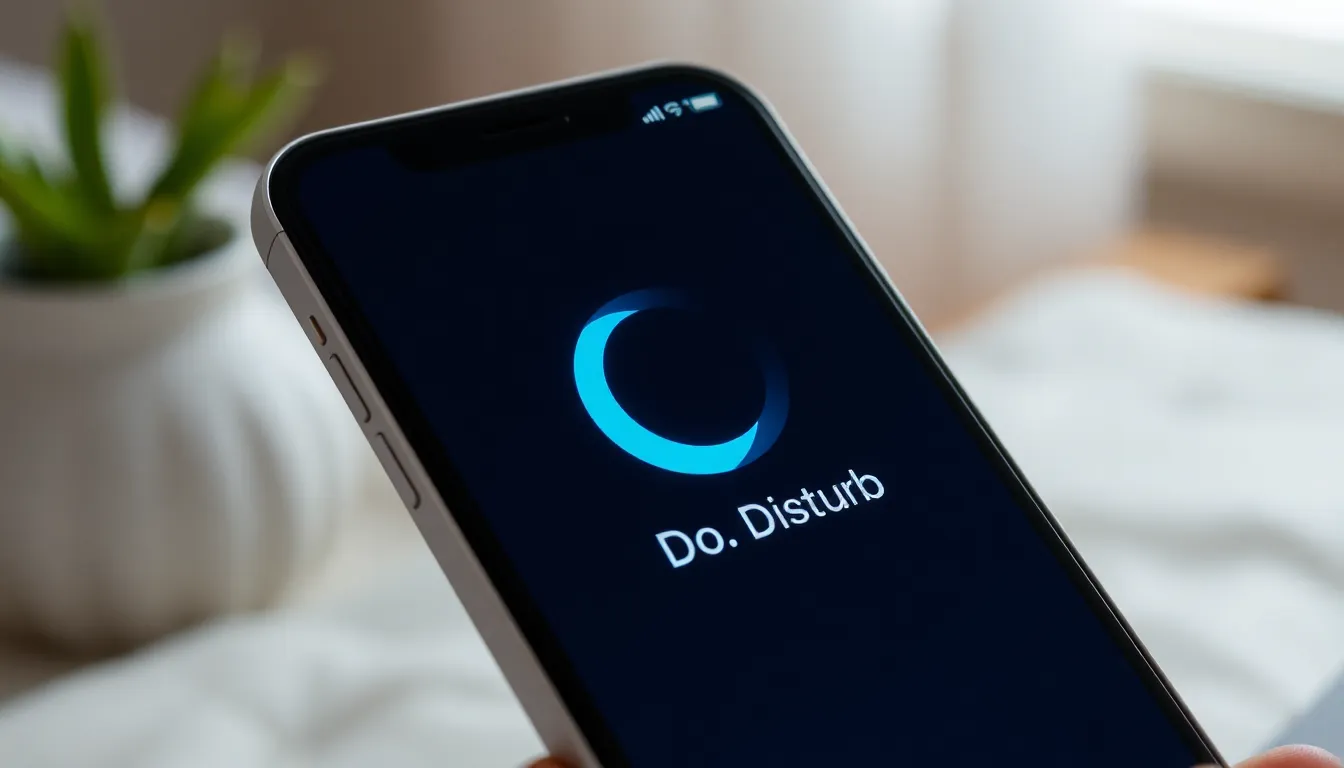
Enabling Do Not Disturb on an iPhone offers users a break from distractions. This feature can be activated quickly through the Control Center or Settings app.
Through Control Center
Accessing Do Not Disturb via the Control Center is simple. Swipe down from the upper right corner of the screen to open it. Locate the crescent moon icon, then tap it. Once activated, the icon will turn blue to indicate the mode is on. Notifications and calls get silenced until the feature is turned off. Users can easily toggle this setting off by tapping the icon again.
Through Settings App
Finding Do Not Disturb in the Settings app provides additional customization options. Open the Settings app and select “Focus,” followed by “Do Not Disturb.” Users can enable the feature with a toggle switch at the top of the screen. Additional settings allow users to schedule Do Not Disturb times. They can customize which apps or contacts can bypass this setting, enhancing their control over interruptions.
Customizing Do Not Disturb Settings
Customizing the Do Not Disturb feature on an iPhone enhances user control over notifications and interruptions. This optimization allows one to tailor the experience based on individual needs.
Scheduled Do Not Disturb
Scheduling Do Not Disturb provides users the option to silence notifications during designated times. To set this up, navigate to the Settings app, select “Focus,” and then tap “Do Not Disturb.” Users can define start and end times, ensuring their evenings or work hours remain undisturbed. Daily schedules or specific days can be established, providing flexibility. Custom settings help maintain concentration on crucial tasks or promote relaxation during off-hours.
Allowing Calls From Certain Contacts
Allowing calls from specific contacts ensures important calls aren’t missed while Do Not Disturb is active. To manage these settings, users can choose contacts from their favorites list. Access this through the “Focus” settings and find the “People” section. Selecting favored contacts enables calls to come through even in Do Not Disturb mode. Users can also permit calls from repeated callers, which provides an added layer of security. This option allows vital messages to reach them without compromising the intended distractions-free experience.
Troubleshooting Do Not Disturb Issues
Troubleshooting Do Not Disturb can help resolve common activation problems. Check settings if notifications still come through after turning on the feature. Ensure the “Allow Calls From” setting includes the appropriate contacts. Verify that Do Not Disturb is not scheduled to turn off during the intended time.
Common Problems and Solutions
Many users encounter issues like not receiving notifications while Do Not Disturb is active. This situation arises often when settings aren’t properly configured. Confirm that the feature is enabled in both the Control Center and Settings app. If alerts persist, check if Focus modes are interfering. Ensure they align with Do Not Disturb preferences. Sometimes, an iPhone restart resolves lingering issues.
When to Seek Further Assistance
Seek support if Do Not Disturb remains unresponsive despite adjusting settings. Contact Apple support for guidance in case of persistent technical issues. Experienced technicians can provide deeper insights and solutions. Visit an authorized service center if hardware problems are suspected. Engaging with community forums can also reveal similar user experiences and potential fixes.
Turning on Do Not Disturb on an iPhone is a simple yet effective way to reclaim focus in a busy world. By silencing notifications and calls, users can immerse themselves in their favorite activities without interruptions. Customizing the settings allows for a tailored experience, ensuring that important communications aren’t missed.
For those seeking tranquility during work or relaxation, scheduling Do Not Disturb can provide a structured approach to managing distractions. Whether it’s through the Control Center or the Settings app, activating this feature enhances productivity and promotes better sleep. With a few taps, individuals can create a more peaceful environment, allowing them to concentrate on what truly matters.

