


Ever find yourself in a situation where your iPhone seems more like a clingy ex than a helpful gadget? It buzzes, beeps, and demands attention at the most inconvenient times. If you’ve ever wished for a magical button to silence the chaos, you’re not alone. Shutting off your iPhone might feel like a task meant for tech wizards, but it’s simpler than you think.
Understanding Your iPhone’s Power Options
Navigating your iPhone’s power settings offers essential functions for effective device management. Knowing how and when to power off is crucial for optimal device performance.
Reasons to Power Off Your iPhone
Users may power off their iPhones for various reasons. They often seek improved battery life by shutting down background processes. Many find that power cycling resolves issues like sluggish performance or app glitches. Notifications can become overwhelming, prompting the need for a temporary break. Some may also need to conserve battery during travel or when access to a charger is limited.
When to Consider Shutting Down
Consider shutting down your iPhone during specific situations. Restarting is helpful after installing software updates, as it ensures proper functionality. Long periods of inactivity may also warrant a shutdown to save energy. If performance slows or apps crash frequently, powering down can refresh system resources. Traveling long distances without charging options indicates the need for a power-off to conserve battery life efficiently.
How to Shut My iPhone Off
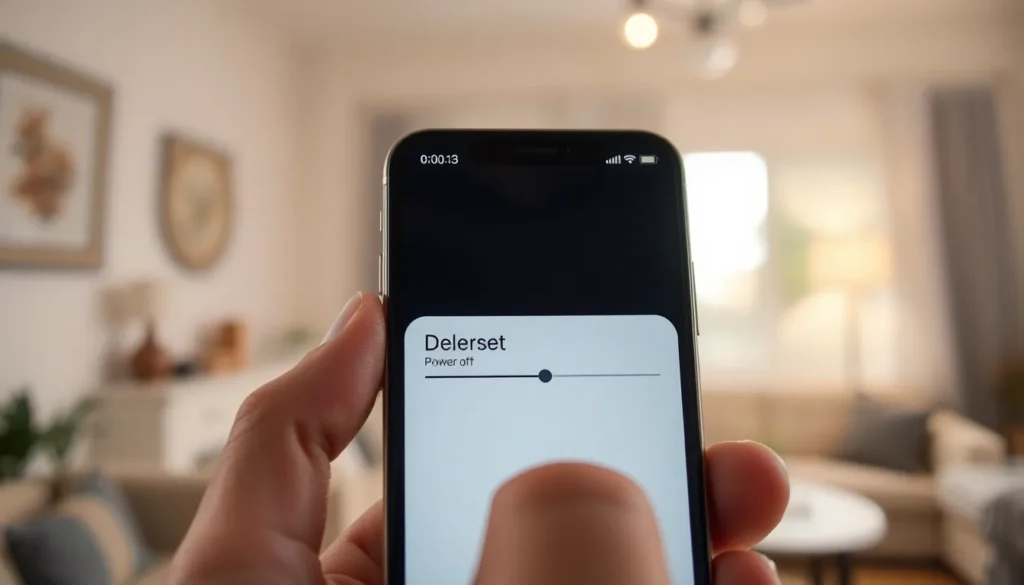
Shutting off an iPhone is straightforward. Users can quickly silence notifications and save battery life in just a few steps.
Using the Side Button
Press and hold the side button along with the volume down button. This action displays the power-off slider on the screen. Drag the slider to the right to turn off the device. Wait for a few seconds as the iPhone powers down completely. Users benefit from shutting down their iPhones during long periods of inactivity or travel when needing to conserve battery power.
Using the Settings App
Open the Settings app on the iPhone. Scroll down to the bottom and select the “General” option. Find the “Shut Down” option, then tap it. A slider appears on the screen to power off the device. This method allows users to turn off the iPhone without any buttons, making it particularly useful for those having difficulty with physical buttons.
Troubleshooting Power Issues
Power issues can lead to frustration for iPhone users. A malfunctioning shutdown process affects device usability.
What to Do If Your iPhone Won’t Shut Down
If an iPhone won’t turn off, users can try several steps. First, hold the side button and either volume button until the power-off slider appears. Secondly, if the slider doesn’t show, force restart the device. For models without a home button, press and quickly release the volume up button, press and quickly release the volume down button, then hold the side button until the Apple logo appears. Each step may resolve the issue with the shutdown process.
Common Errors and Fixes
Common errors include unresponsive screens and software glitches. A non-responsive screen can cause frustration when trying to power off the device. Restarting the iPhone often helps clear temporary glitches. For persistent problems, ensuring the device runs the latest software updates is essential. Users can go to Settings, select General, then tap Software Update. Regular updates can fix known bugs and improve performance. Another option is to restore the iPhone through iTunes or Finder, a more drastic fix that resets the device while retaining data.
Alternatives to Shutting Down
Users can manage their iPhone’s performance and notifications without powering off the device entirely. Consider the following alternatives for a more efficient experience.
Restarting Your iPhone
Restarting the iPhone can resolve minor glitches without a full shutdown. To do this, press and hold the side button with the volume button, then release once the slider appears. Slide to power off, then press the side button again to restart. Performing this action regularly can enhance functionality and clear caches. Sometimes, it can be the quickest fix for unresponsive apps or sluggish performance.
Activating Low Power Mode
Activating Low Power Mode helps conserve battery life without shutting down the device. To enable it, navigate to Settings, tap on Battery, and toggle the Low Power Mode switch. This mode reduces background activity such as mail fetching and app refreshes. Users can extend battery life significantly by using this feature during long days out or when charging options aren’t available. Low Power Mode also assists in managing notifications and keeping distractions at bay.
Understanding how to shut off an iPhone can greatly enhance user experience. Whether it’s to improve battery life or take a break from constant notifications knowing the simple methods to power down makes a difference.
By utilizing the side button and volume down button or navigating through the Settings app users can easily turn off their devices. This knowledge not only helps in managing distractions but also aids in troubleshooting potential issues.
For those who prefer not to shut down entirely options like restarting the device or activating Low Power Mode provide effective alternatives. Embracing these techniques allows users to maintain control over their iPhone usage and enjoy a more balanced digital life.

